

Add Sunny Lyrics Studio (SLS) Web-App
to your iPhone or Android phone
Follow simple instructions below.
Web App Powered by:

Click on this image to see screenshot instructions.
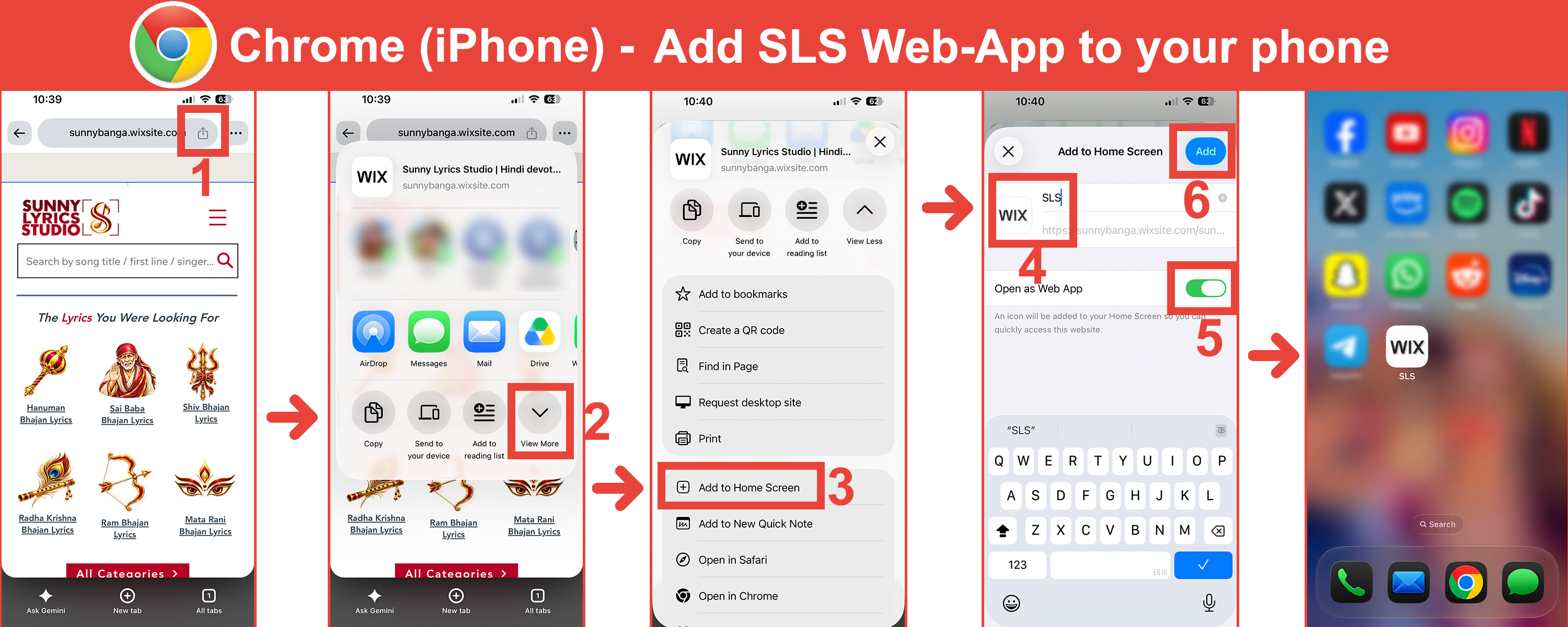
Add SLS Web-App on iPhone (via Chrome)
Step 1: Tap the "Share icon" in the address bar.
Step 2: Tap "View More" to see additional options.
Step 3: Scroll down and tap "Add to Home Screen".
Step 4: Rename the Web App to "SLS".
Step 5: Keep "Open as Web App" enabled.
Step 6: Tap Add in the top-right corner.
That's it! The Wix icon will appear on your Home Screen with the name SLS.
Click on this image to see screenshot instructions.
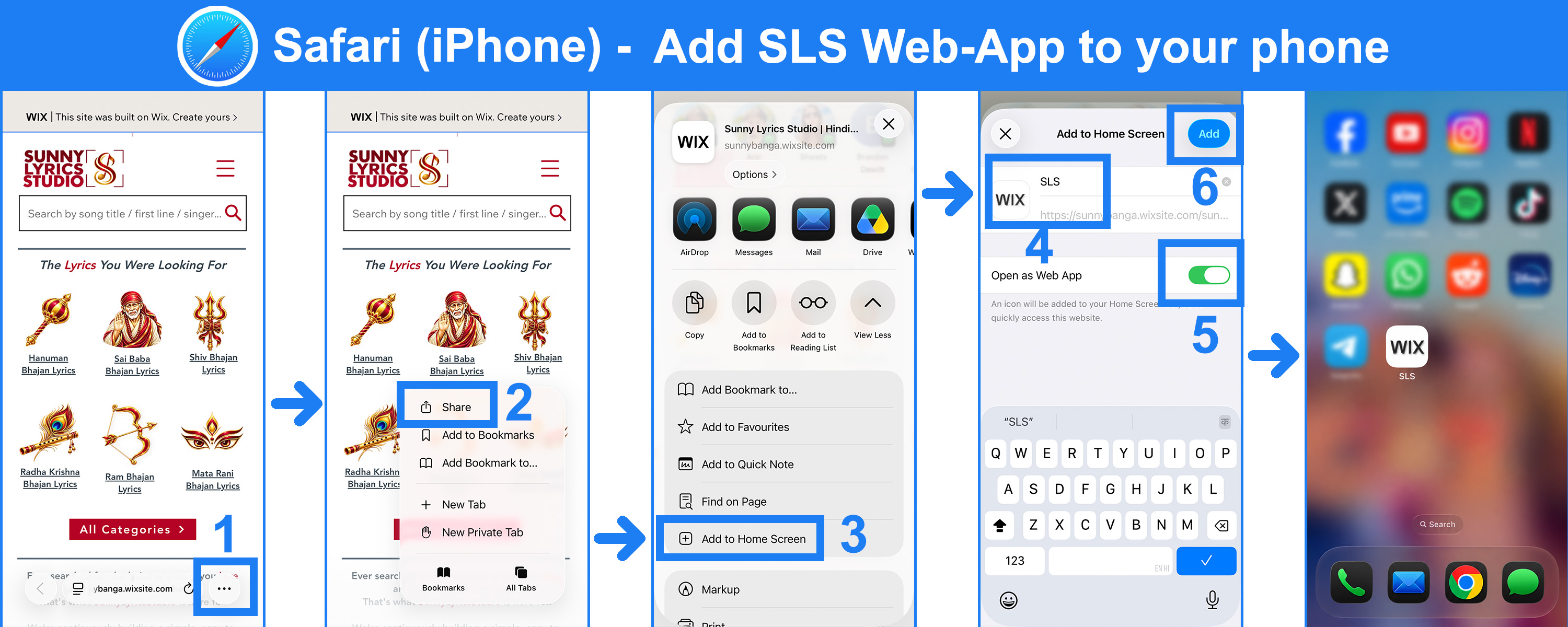
Add SLS Web-App on iPhone (via Safari)
Step 1: Tap the three dots (…) at the bottom-right corner.
Step 2: Tap "Share".
Step 3: Scroll down tap "Add to Home Screen".
Step 4: Rename the Web App to "SLS".
Step 5: Keep"Open as Web App" enabled.
Step 6: Tap "Add" in the top right corner.
That's it! The Wix icon will appear on your Home Screen with the name SLS.
Click on this image to see screenshot instructions.
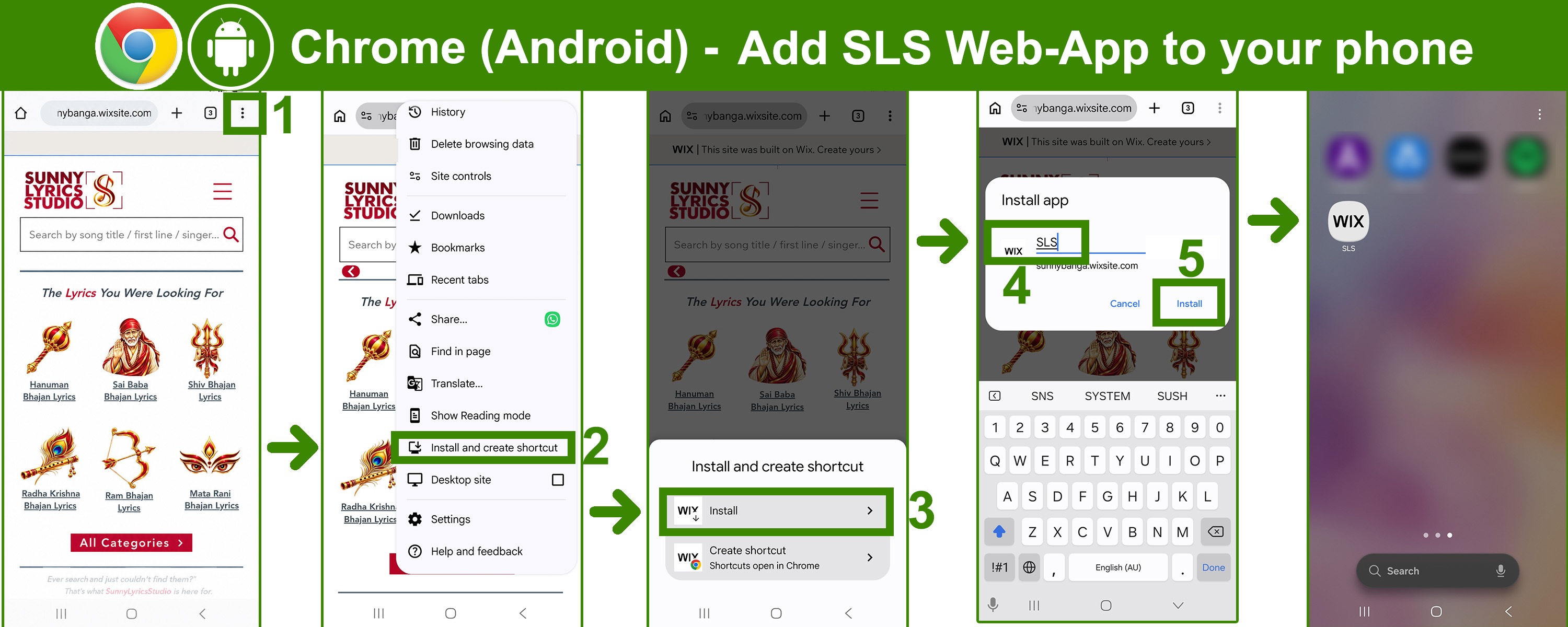
Add SLS Web-App to Android phone (via Chrome)
Step 1: Tap the three dots (⋮) in the top-right corner.
Step 2: Scroll down and tap "Install and create shortcut".
Step 3: Select the Install option with the "Wix icon". Do not select "Create shortcut".
Step 4: Rename the Web App to "SLS".
Step 5: Tap Install to finish.
That's it! The Wix icon will appear on your Home Screen with the name SLS.